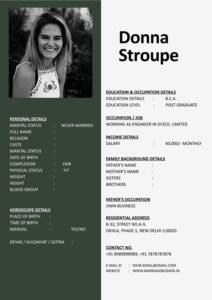
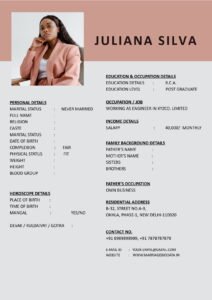
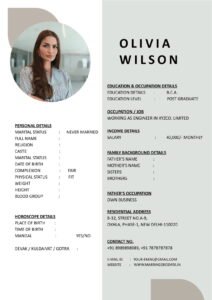
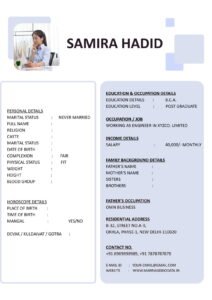
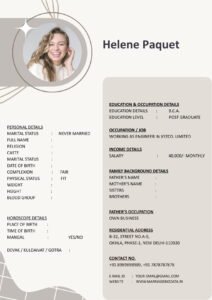
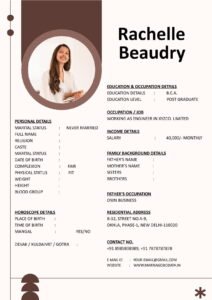
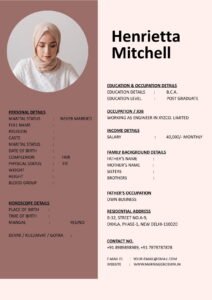
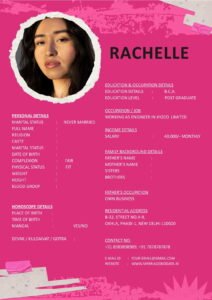
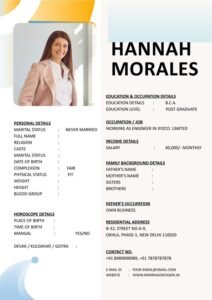
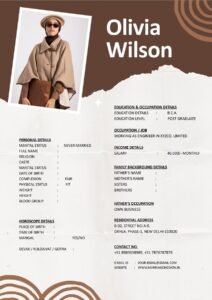
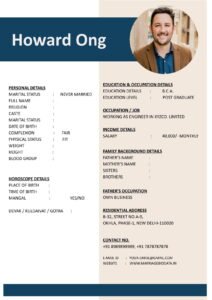
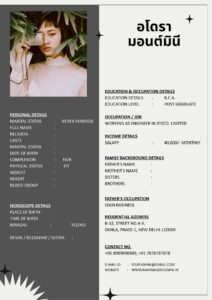
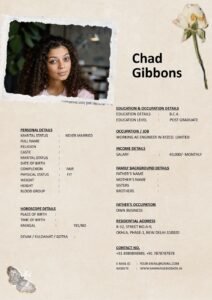
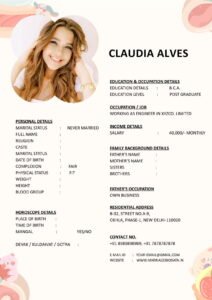
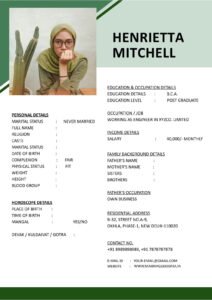
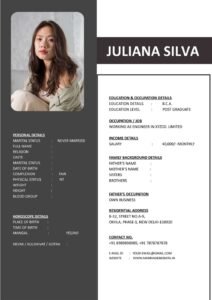
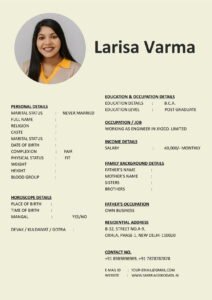
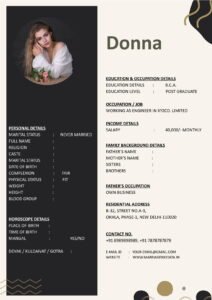
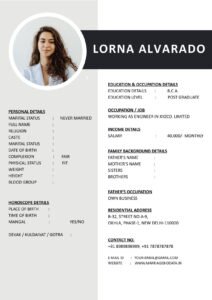
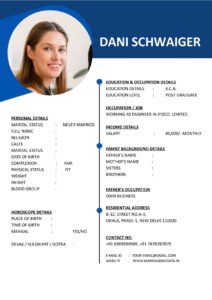
Creating a marriage biodata used to mean visiting a printing shop or asking someone to design it for you. Today, you can easily make a professional biodata for marriage using Microsoft Word and download it as a PDF in just a few simple steps. This method is quick, affordable, and gives you full control over how your profile looks.
If you are preparing a matrimonial biodata for the first time, don’t worry. This easy tutorial will guide you step by step — from creating a clean layout in Word to saving it as a mobile-friendly PDF that you can share on WhatsApp or email.
What Is a Marriage Biodata?
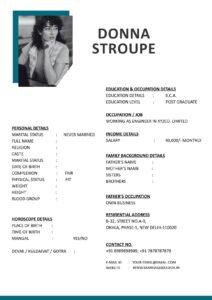
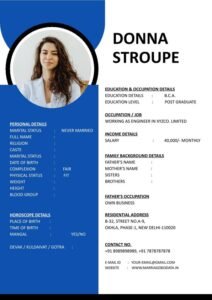
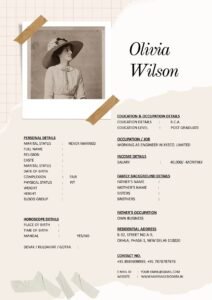
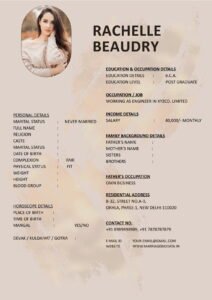
A marriage biodata is a document that presents personal details, education, profession, family background, and partner preferences for matrimonial purposes. It works like a marriage CV, helping families understand your background and values at a glance.
Today, most people create their matrimonial biodata digitally so it can be shared easily and viewed on mobile devices.
Why Create Your Marriage Biodata in Word?
Microsoft Word is one of the easiest tools to use for designing a marriage biodata format. It offers flexibility, simple formatting options, and easy PDF conversion.
- Easy to use: No design skills required.
- Fully customizable: Change fonts, colors, and layout.
- Professional output: Clean and structured format.
- Quick PDF conversion: Save your biodata in seconds.
Using Word ensures your matrimonial biodata looks clear and professional.

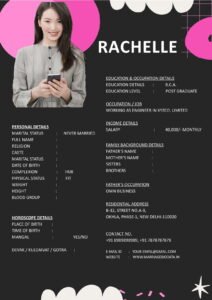
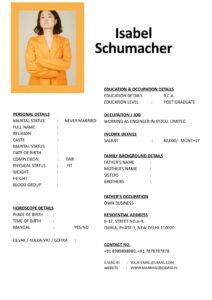
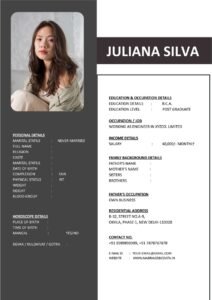
Essential Details to Include in a Marriage Biodata
Before you begin, gather the information you want to include.
- Full name
- Date of birth and age
- Height and religion
- Education and profession
- Family details
- Contact information
- Partner preferences
- Photograph
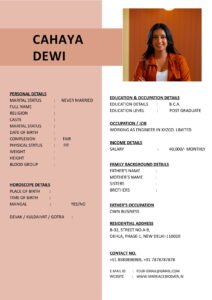
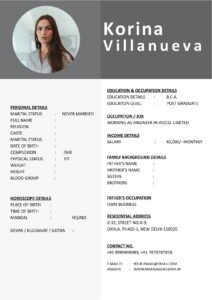
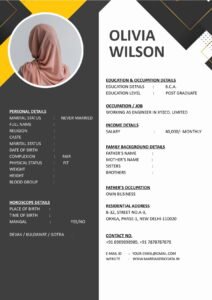
A well-structured biodata template ensures these details are presented clearly.
Step-by-Step Guide: How to Make a Marriage Biodata in Word and Download as PDF
Step 1: Open Microsoft Word and Set Up the Page
Start with a blank document.
- Select A4 page size
- Set margins to “Normal”
- Choose a clean font like Calibri or Arial
Step 2: Add a Clear Title
At the top of the page, add a simple heading such as:
Marriage Biodata
Keep it centered and slightly larger than the body text.
Step 3: Insert Personal Details Section
Use bold headings for each section.
Example:
- Name: Rahul Sharma
- Date of Birth: 10 March 1995
- Height: 5’9”
- Religion: Hindu
Step 4: Add Education and Profession
This section highlights your achievements.
- Education: B.Tech in Computer Science
- Occupation: Software Engineer
- Company: ABC Technologies
Step 5: Include Family Details
Keep this section concise and respectful.
- Father’s occupation
- Mother’s occupation
- Siblings (if any)
Step 6: Add Partner Preferences
Mention preferences in a polite and realistic manner.
- Education preference
- Values and lifestyle
- Location preference
Step 7: Insert a Photograph
Click “Insert” → “Pictures” and choose a clear, recent photo.
- Use a professional-looking image
- Keep the size moderate
- Align it neatly
Step 8: Format for Readability
- Use bold headings
- Maintain spacing between sections
- Avoid too many colors
Step 9: Save as PDF
Once your biodata is ready:
- Click “File”
- Select “Save As”
- Choose PDF from the file type options
- Click “Save”
Your marriage biodata is now ready to share on WhatsApp, email, or matrimonial websites.
Real-Life Example
Amit needed a biodata urgently for a family proposal. Instead of waiting for a designer, he created his own using Microsoft Word. He used a simple layout, added a professional photo, and saved it as a PDF. His family appreciated the clean design, and the biodata was easy to share on WhatsApp. Within weeks, they received several positive responses.
This shows that a simple, well-structured biodata can be highly effective.
Common Mistakes to Avoid
- Using fancy fonts: Decorative fonts reduce readability.
- Overloading information: Keep it concise.
- Poor photo quality: Use a clear and recent image.
- Too many colors: Stick to a simple design.
- Not checking PDF output: Always review before sharing.
Pro Tips for a Professional Marriage Biodata
- Keep it one page: Easier to read and share.
- Use bullet points: Improves clarity.
- Ensure mobile-friendliness: Test on your phone.
- Update regularly: Keep details current.
- Use ready-made templates: You can download modern formats from marriagebiodata.in to save time and ensure a professional layout.
Why PDF Format Is Best for Sharing
Saving your biodata as a PDF ensures that your layout remains consistent across devices. Whether viewed on a smartphone or laptop, your marriage biodata format will look the same.
- Preserves design and fonts
- Easy to open on mobile devices
- Professional appearance
- Ideal for WhatsApp and email sharing
Conclusion
Learning how to make a marriage biodata in Word and download it as a PDF is a simple yet valuable skill. It allows you to create a clean, professional, and mobile-friendly matrimonial biodata without needing design expertise.
By using a clear structure, readable fonts, and a high-quality photo, you can present your details in a way that builds trust and creates a strong first impression. Start with a well-organized biodata template, keep the content concise, and save it as a PDF for easy sharing.
If you want ready-to-use designs, explore templates at marriagebiodata.in to create a polished and attractive marriage biodata in minutes.
Frequently Asked Questions (FAQs)
1. Can I create a marriage biodata in Word without design skills?
Yes, Microsoft Word is user-friendly and allows you to create a clean biodata using simple formatting.
2. Why should I save my biodata as a PDF?
PDF format preserves layout and ensures your biodata looks consistent across devices.
3. What font is best for a marriage biodata?
Simple fonts like Arial, Calibri, or Times New Roman are ideal for readability.
4. How long should a marriage biodata be?
One page is recommended for easy reading and sharing.
5. Where can I find ready-made biodata templates?
You can download modern and customizable templates from marriagebiodata.in to create a professional matrimonial biodata quickly.